A hairstyle try on that uses your photo, not a model
One photo goes in and comes back with a different haircut on it, in a few seconds, with your hairline, your skin tone and your lighting left where they were. This page is the how: what the app does with your picture, what makes an upload work, and the parts of a haircut a render honestly cannot answer.

Free to download. iPhone, iOS 15.1 or later. ★★★★★ 5.0 on the App Store from 2 ratings.
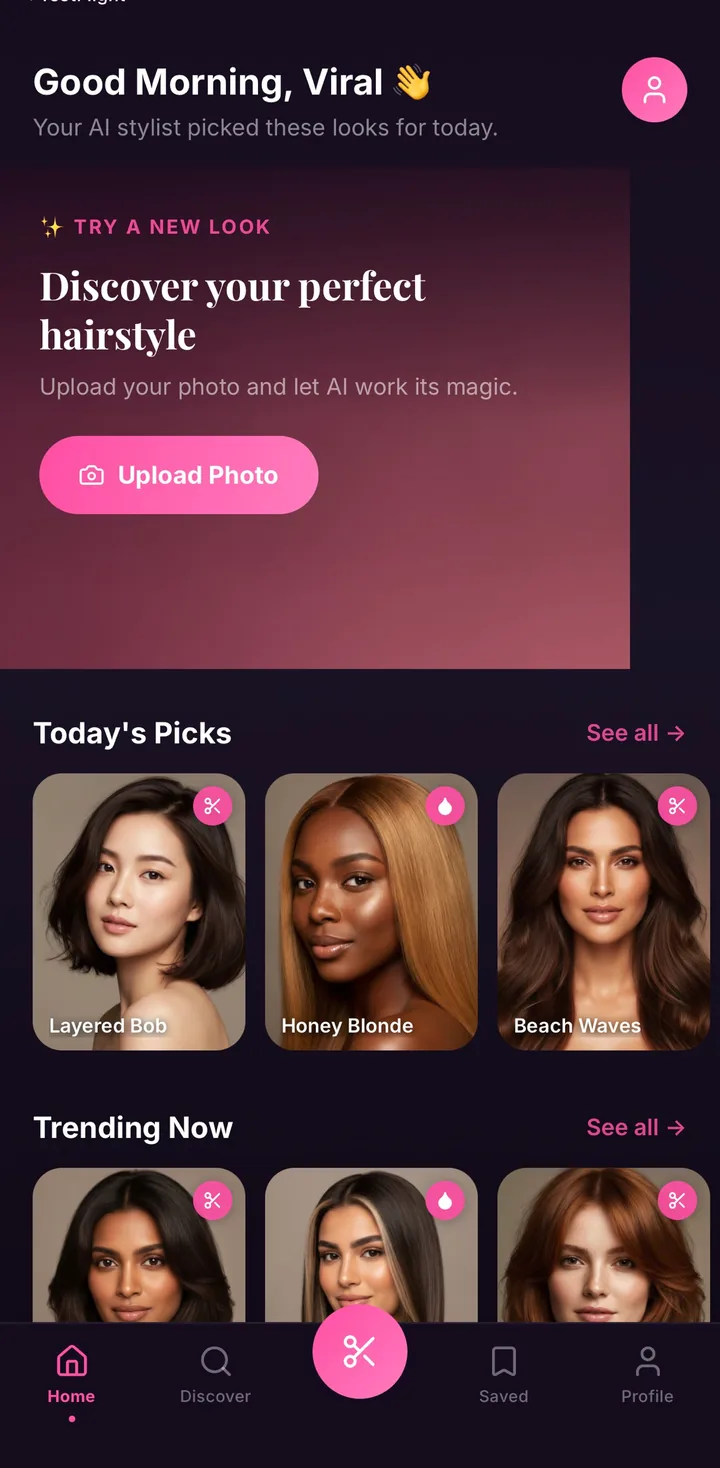
What happens between the upload and the result
No wig is pasted onto your head. The picture is rebuilt with different hair in it.
It regenerates the photo, it does not overlay hair
A sticker style filter cuts out a hair shape and lays it over your head, which is why those results have a hard edge at the temples and hair lit from a different direction than the face underneath it. HairGlam generates a new version of your picture with the style you picked, so the light falling on the hair is the light that was in your photo, and the ends fall in front of your shoulder instead of stopping at a cut out line.
What it takes from your photo
Where your hairline sits, how wide your forehead, cheekbones and jaw are relative to each other, which direction the light is coming from, and your skin tone. Those are the things that decide whether a fringe lands above your brows or halfway down them, and whether a new color reads warm or cool once it is next to your face.
What it leaves alone
Your features. That is the entire reason to use a try on instead of a lookbook: the face doing the judging is yours, so a cut that shortens your neck or squares off your jaw shows you exactly that, rather than showing you a model it happens to suit. Glasses, a beard and freckles stay where they are.
The same style twice will not be identical
This is generation, not a lookup in a table. Run the same cut on the same photo twice and the part may fall on the other side, or the waves may break differently. Worth knowing, because it means one unconvincing result is not a verdict on the style. Run it a second time before you rule the cut out.
Where the try on lives in the app
Three screens, and you only need the first one to get a result.
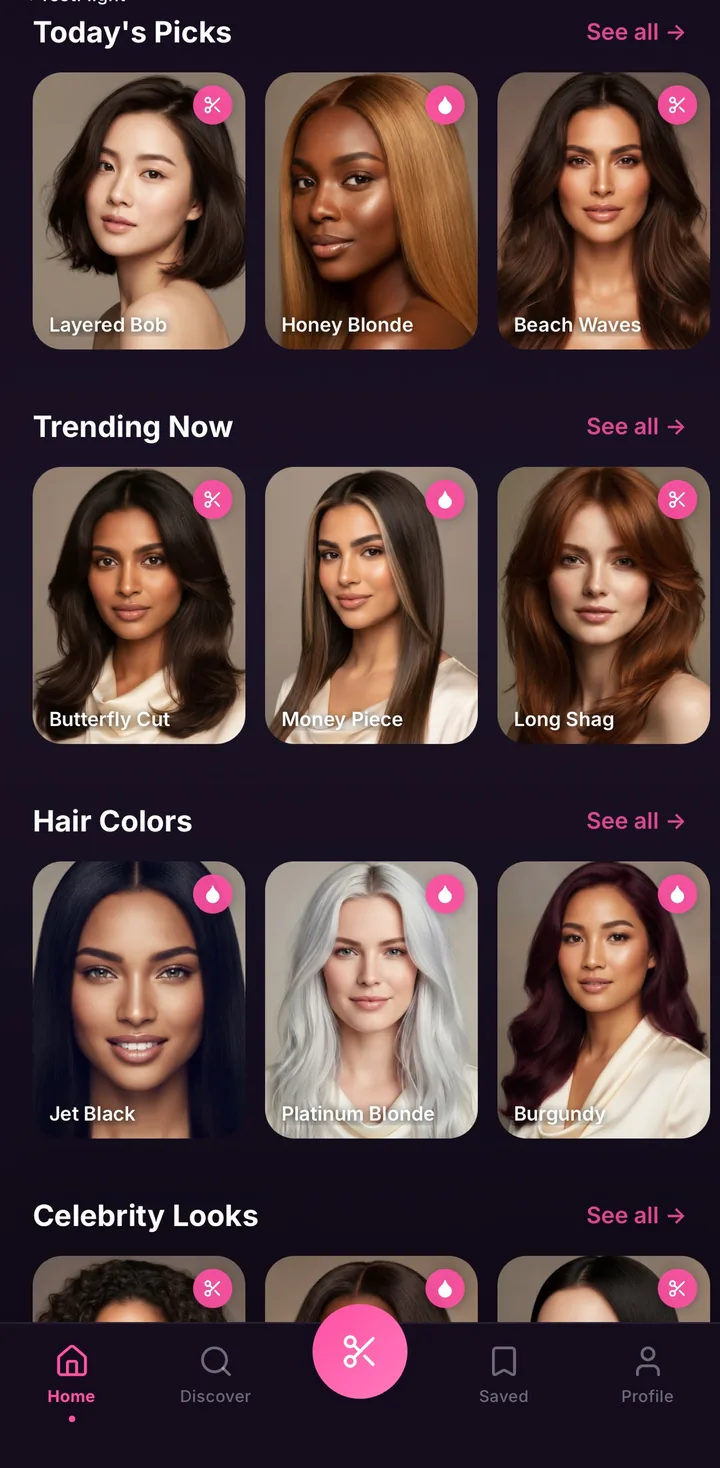
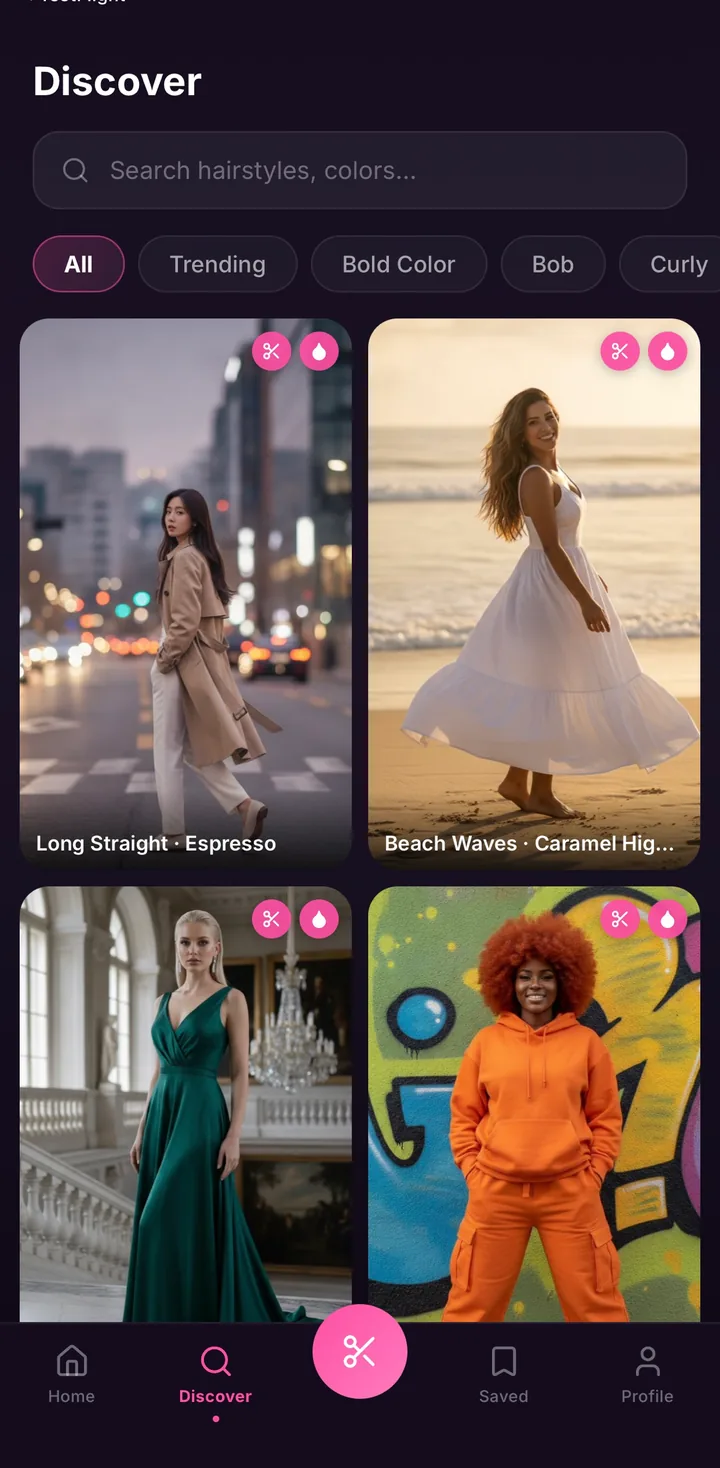
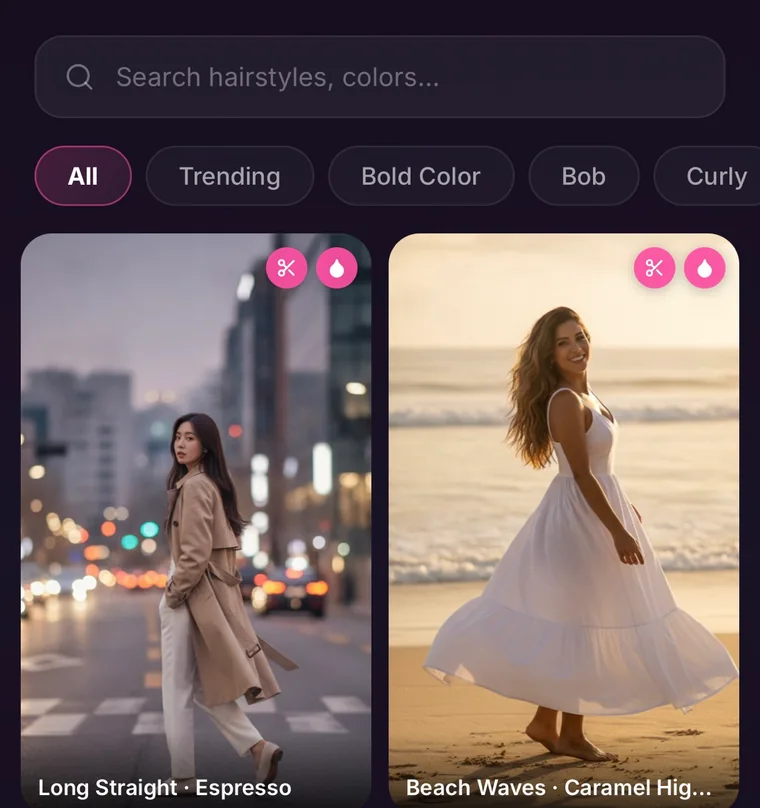
Cards in the Discover grid carry both badges and name both halves of the look, like Long Straight and Espresso. Anything you keep goes to the Saved tab, so you can come back to two renders the next morning instead of deciding in the moment.
The photo does most of the work
Nothing you tap in the app rescues a bad upload. Five minutes spent on the picture beats an hour of browsing.
Light: face a window
Daylight coming at you, rather than down at you or from behind. An overhead bulb drops shadow into your eye sockets and under your jaw, and that shadow gets read as part of your face shape. Backlighting is worse, because it flattens you toward a silhouette and hides where your hairline actually starts. Afternoon light through a window, with the window in front of you, is about as good as it gets.
Angle: straight on, camera at eye level
A phone held low tips your chin up and widens your jaw. Held high it narrows your jaw and enlarges your forehead. A three quarter turn hides one side of your hairline completely. The whole exercise is judging a cut against your proportions, so an angle that quietly changes those proportions ruins the test before it starts. Lens at eye level, nose pointed at it.
Hair: pulled back off your face
The app has to see where your hair starts. A fringe you already have, or length falling across your cheek, sits on exactly the area a new cut has to be drawn into. Push it back with your hands or a headband and take the picture with your forehead and your ears clear. This matters most if you are testing bangs, since the forehead is the part being changed.
Leave out: hats, sunglasses, beauty filters
Filters are the one people forget. A beauty filter has already narrowed your jaw and smoothed your hairline, so you end up approving a haircut on a face that has been edited into someone slightly else. The same goes for the shadow from a hat brim across your forehead, sunglasses covering a third of your face, and a busy background with other faces or strong patterns in it.
Use a recent photo
A picture from three years ago answers a question about a three year old face. Weight, brow shape and hairline all move. If you are choosing a cut for an appointment on Thursday, take the photo this week, in the light you actually live in rather than on the one good holiday.
What a try on settles, and what it does not
A render is very good at one half of the question and no use at all on the other half. Knowing which is which saves an argument at the salon.
It settles the shape question
Whether the outline of a cut works against your jaw, your forehead and your neck is geometry, and geometry is what a picture answers well. Length against your shoulders, a fringe against your forehead, a fade height against your temples: all of that you can read straight off the render. If you want the reasoning behind those calls, the face shape guide works through it.
It settles the color question
A shade is judged against skin, and a comparison needs both things in the same picture at the same time. A swatch on a box or a chart on a salon wall gives you one of the two. The render gives you both, which is why color is where a try on earns its keep. More on that on the hair color try on page.
It cannot tell you how your hair will behave
The hair in a render is styled hair. Yours has a growth pattern, a density, a cowlick and a humidity threshold. A cut can look right in the picture and still need a round brush and ten minutes every morning to look like that. Whether your hair will hold the shape is a question for the person cutting it, not for an app.
It cannot tell you what is achievable
A render is a picture, not a quote. Whether your hair can reach that length by next month, or that blonde in a single appointment without wrecking the ends, is a conversation with a professional. Take the render into that conversation. It is a far clearer brief than a photo of a stranger, and it is a starting point rather than a promise.
From photo to result in three steps
Upload the photo
Tap Upload Photo under Discover your perfect hairstyle on the home screen. Use the shot you prepared, not the most flattering picture in your camera roll. Those are rarely the same photo, and only one of them is useful here.
Pick a look
Tap anything in Today's Picks, Trending Now, Hair Colors or Celebrity Looks, or open Discover and search by name. Scissors on a card means it changes the cut. A droplet means it changes the color.
Read the result properly
Look at the outline against your jaw and at the point where the hair meets your hairline, not at the shine. Save the ones that hold up, run a second cut on the same photo, and judge them against each other rather than reacting to one.
Questions about the try on
How does a virtual hairstyle try on work?
Do I have to pay to try it?
Will the result look fake?
Can I use a photo from my camera roll?
Does it work if I want to go much shorter or much longer?
Does it work for men?
What happens to my photo?
Which iPhone do I need?
Once you know how it works
What haircut suits me?
The six face shapes, the cuts that suit each, and the three things that matter more than the chart.
Should I get bangs?
Five kinds of fringe, who each one suits, and the upkeep nobody mentions before you book.
Try on hair colors
Undertone, what balayage and money piece actually mean, and the real cost of going lighter.
For men
Nine cuts with the guard numbers to ask for, and what a moving hairline changes.
HairGlam home
The short version of what the app does, with the real screens it does it on.
Guides and comparisons
Face shape guides, cut recommendations, and an honest test of the AI hairstyle apps.
One photo is the whole setup
Get the upload right and the rest is browsing. 240+ cuts and colors, rendered on your own face, in the time it takes to find the salon's number.
Free to download. iPhone, iOS 15.1 or later.